
Overview
This article will provide instruction for Program Admins or Site Leaders to manually assign an individual student to their designated rater.
Manually Assign an Individual Student to Rater
- Select the gear icon in the top-right corner and select Settings.
- Unable to Locate the Gear Icon? On smaller screens or at certain zoom levels, the gear icon may not appear in the upper-right corner of the application. To access Settings, click the hamburger menu (☰) in the upper-left corner and select Settings from the menu.
- Then, click on Assignment Review on the left navigation
- Search for or find the student's name in the table list.
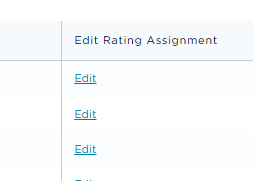
- Click Edit under the Edit Rating Assignment column next to the student's name (See Image 1)
Image 1
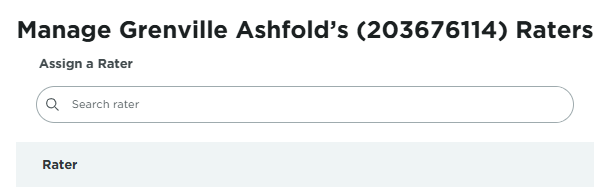
In the search box under 'Assign a Rater' enter the name of the rater you will make the assignment for and complete assigning any raters to this student. (See Image 2)
Image 2
Note: You will see all students at your school within Assignment Review. If you search for a rater from the Assignment Review screen, you will be searching from the list of staff who already have at least one student assigned to them in the system. This will not be a complete list of all of the staff who are in the DESSA x Move This World System for your school.