Overview
We recognize that Raters have different preferences when completing ratings. You can choose to complete the DESSA using either a table view or a single question view. The steps below outline how to switch between these two options.
Switching Between Views
1. From the Ratings screen, open the View Mode dropdown menu. If a student you select has already been rated, the View Mode option will not appear.
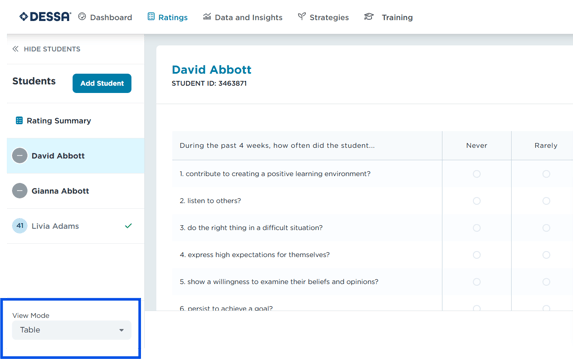
2. Select Single Question view mode to have only one question displayed per page. To revert back to Table view, you can reselect Table.
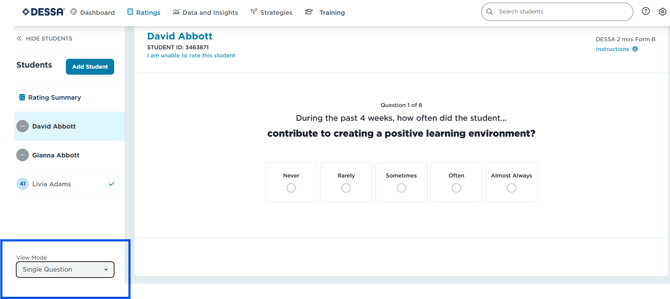
Note: Any changes you make to the View Mode will apply to all future ratings.
When in Single Question view mode, you will select Get Started to being completing the questions.
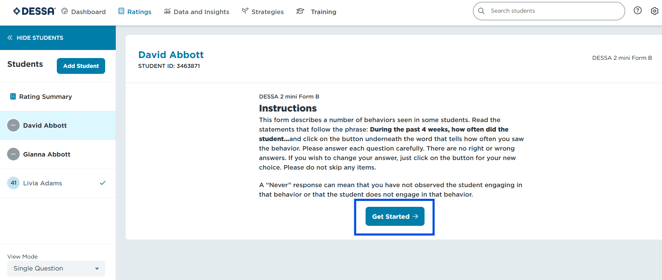
5. Once you've selected Get Started begin answering the assessment questions.
- Radio buttons are displayed to answer each question.
- The questions will auto advance upon clicking.
- Navigational options include:
- Previous Question on lower left of rating screen
- Skip Question (this is only available on a Full DESSA)
- Next Question on lower right of screen (this will only appear if you have gone back to view a previous question)
- Instructions can be reviewed at any time by clicking on Instructions.
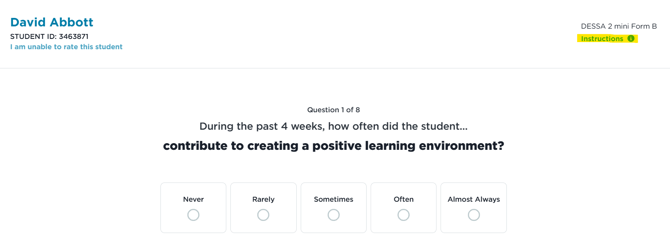
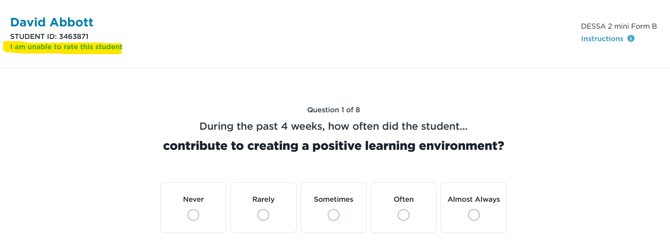
- If this student should not be in your Rating List or has not been observed for the minimum 4-week period. Select I am unable to rate this student.
6. Before submitting the form, you'll see a prompt if you are required to complete any skipped questions.
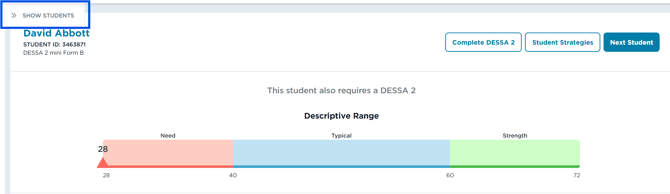
7. Once the rating is complete, you will see a Summary for this student and where that student falls on the Descriptive Range.
- This Summary will give you the option to:
- Complete a full DESSA (if conditional DESSA criteria are met)
- Begin rating the Next Student.
- Go to Student Strategies. For more information about Student Strategies, visit this support article.
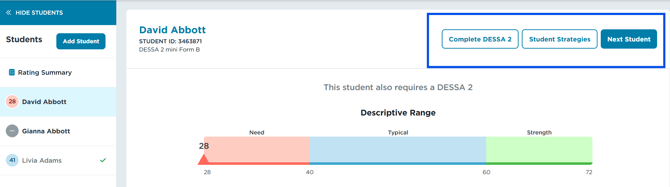
- If you want to select the next student you plan to rate, click Show Students (if the list is not already visible) and choose the next student from your Rating List.