Overview
The Rating Export will allow customers to see all completed ratings by rating form for students at a specific site(s) and for a specific date range. The following instructions will allow the customer to use this data to determine an estimated completion percentage for previous ratings, either for the entire program or at a specific site. You will need an estimated student enrollment count at your program and specific sites during the date range you will specify.
To access the Rating Export:
1. Login to the portal as a Site Leader or Program Admin. Educators will not be able to pull this report from their account.
2. Click "Reports" In the top left navigation menu.
3. Select "Rating Export" from the report navigation menu on the left side of the screen.
4. Select the Rating Form you would like to pull and export by using the drop-down menu.
5. Select the date range you would like the report to cover using the "Start Date" and "End Date" fields.
6. Make sure each site you would like included in the Rating Export is selected using the checklist of site names.
7. Once you have set your parameters, click "Export" in the lower right corner. This will download an Excel spreadsheet with any data meeting your parameters.
To get an estimated completion percentage for all the ratings forms:
📌Note: You will need to repeat steps 4-7 listed above for each rating form using the same date range and the same sites you previously selected. (For example, to get the rating completion for DESSA K-8 assessments, you will need to export both the DESSA-mini and full DESSA forms. Similarly, to get rating completion for teacher-administered DESSA High School Edition assessments, you will need to export both the DESSA-HSE mini forms and full DESSA-HSE forms.)
8. Once the reports are downloaded, you will need to go to your computer’s download file. You will need to combine all the files by opening each file. Copy all the rows with data in columns A-S. Open a new spreadsheet and paste those columns (A-S). Do not paste the additional headers from each file. Continue opening each file, copying the columns A-S for each file and pasting them into the spreadsheet you created. Please ensure that the data you are pasting aligns with the data in the file and the columns match.
9. Once the data has been compiled into one file, you will need to remove the student’s duplicate records. Highlight all of the data, then click on Data from the top toolbar and click on Remove Duplicates (Image 1).
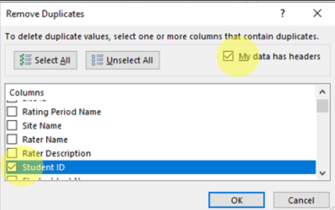
10. On the pop-up window: Select my data has headers and then select Student ID from the list, then click OK (Image 2).
Image 1
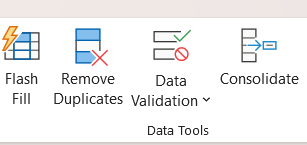
Image 2
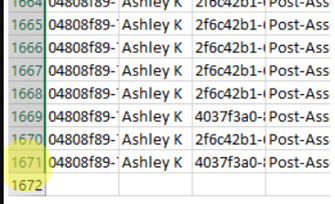
11. Total Number of Students (Program) The data that is left is the total number of students that were rated from your program. You can scroll to see how many rows (minus the header) for the total number of students that were rated in the program (CTL+END or CTL+down arrow) will take you to the bottom of the data without having to scroll).
12. Estimated Completed Percentage by Program: To find the estimated completed percentage by program, you will need to find the total number of students who were rated for the program (Step 13). You will divide the total number of students (program) by your estimated enrollment of students in the program during the date range you specified in the report.
13. Total Number of Students (Site): To find the total number of students rated at each site, you will need to filter by site. Highlight the site_name column by clicking above the column. Click on Data from the top toolbar and click on Filter.
- Click on the drop down arrow next to the Site_Name field. On the popup window, select 1 site.
- The data that is left is the total number of students that were rated from the specific site you chose. You can scroll to see how many rows (minus the header) for the total number of students that were rated at this site (CTL+END or CTL+down arrow will take you to the bottom of the data without having to scroll). You can repeat this step for each of the sites to get the total count of students by site (Image 3).
14. Estimated Completed Percentage by Site: To find the estimated completed percentage by site, you will need to find the total number of students who were rated for that site (Step 12). You will divide the total number of students (site) by your estimated enrollment of students in that specific site during the date range you specified in the report.
Image 3